To create an encrypted message to an off-campus address you can follow the procedures below:
There are two ways to do this and this document covers both. The BEST way is to use the Sophos email encryption plugin that is installed when you have had IT setup desktop encryption on your office computer. Desktop encryption uses the Bitlocker technology built into Windows to encrypt the entire disk on your computer and uses the TPM or Trusted Platform Module in the computer to store the key. The key is also stored in the MSU Sophos management console to make sure we can assist you if you ever lose access to your key in stored in the TPM.
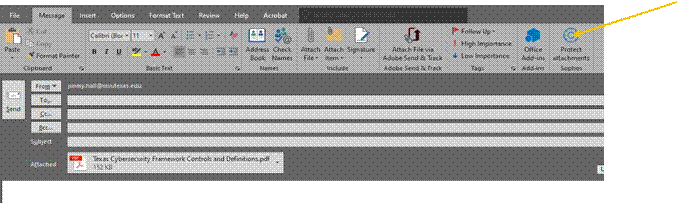
Once the Sophos plugin is installed in Outlook you can attach a file to an email as shown below and then click the Protect Attachments button to encrypt the file before it is sent.
When you click the Protect attachments button you will see a window pop up asking for a password as shown below.
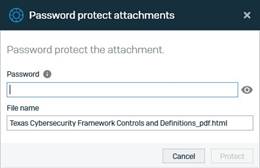
Once you enter the password and click the Protect button the attachment will be encrypted and you will notice that the attachment type changes.
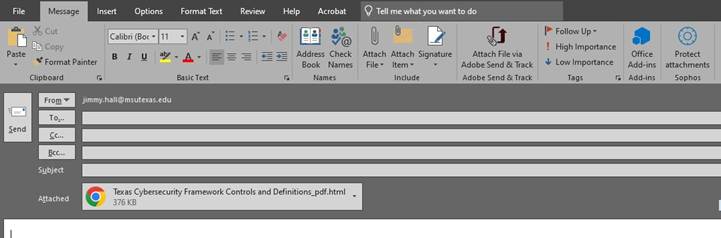
Complete the email addressing and send as you normally would. You should send the password in a separate email or by txt message to the recipient but never in the same email.
The recipient can double click the received attachment and will be prompted for the password in order to decrypt.
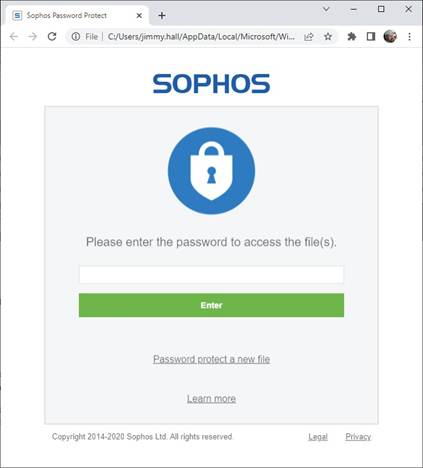
Once the password is successfully typed in, click the Enter button to complete the decryption of the attachment.
Another way to encrypt messages to off-campus users is shown below. Do not use this if the content cannot reside in sent items unencrypted.
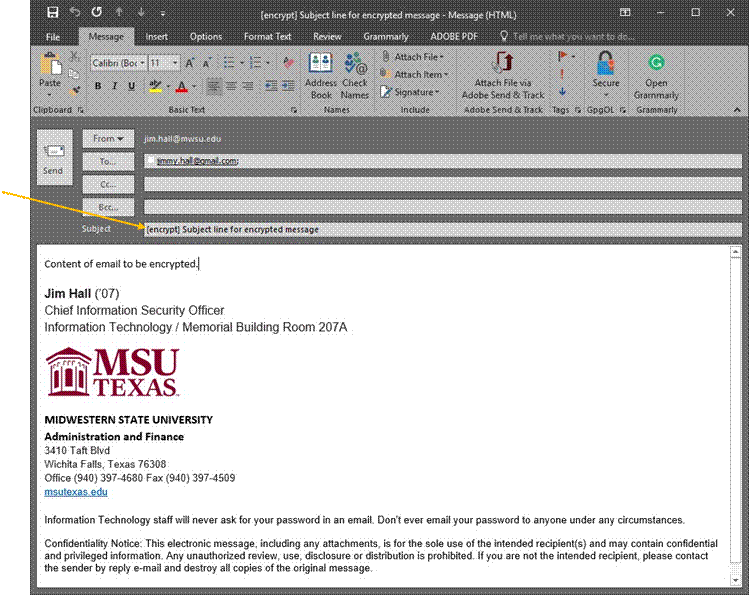
Create your message just as you normally would, but the subject line must begin with [encrypt] as shown below. You can use any normal subject line text after [encrypt] that you wish to use. Please make certain that there is a space between [encrypt] and your subject line text.
The message recipient will get an email similar to the one shown below:
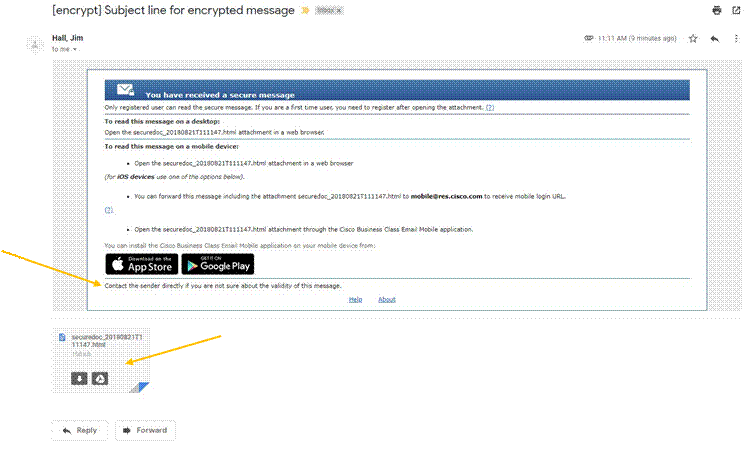
To open the message double-click the attachment. Notice that we instruct the recipient to contact the sender directly if unsure of the validity of the message.
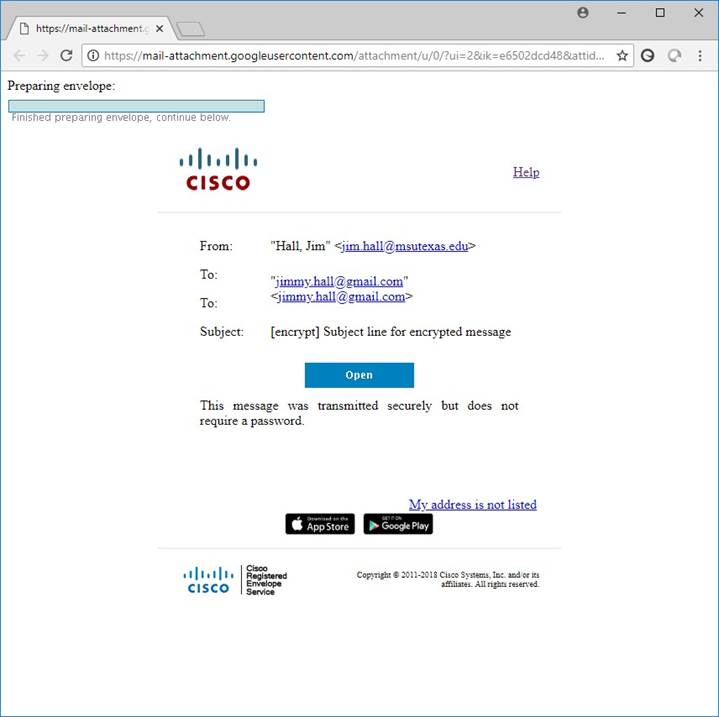
When you open the attachment you will see a browser screen similar to the one below.
The encrypted message is displayed once the Open button has been clicked.
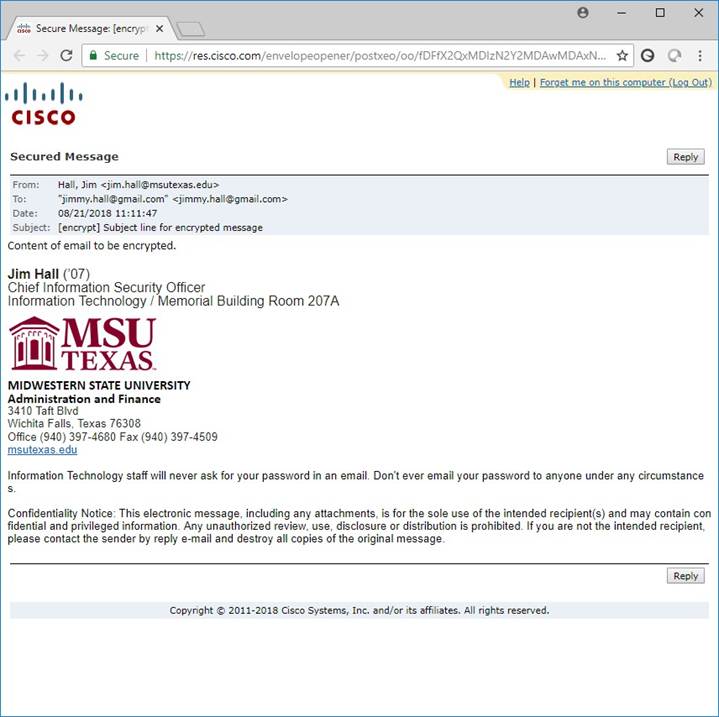
The user can click the Reply button on the encrypted message and the process will work the same way in reverse for the reply with the original sender receiving the encrypted message.